Best Video Editing Software for Beginners in 2026
Open your first video editor and it can feel like stepping into a cockpit. Panels everywhere. Icons with no labels. A timeline that doesn’t do what you expect. That feeling is not a sign you’re bad at this. It’s a sign you picked software built for someone way ahead of you.
Most people don’t quit video editing because cutting a clip is hard. They quit because the software made something simple feel technical. The fix isn’t more patience. It’s picking a tool that fits where you are right now. You can always grow into something bigger later.
This guide skips the filler. It shows you what beginner-friendly software really looks like. It compares the tools worth your time in 2026. And it shows you how to pick based on what you’re making, not what’s trending.
What “Beginner-Friendly” Really Means
Some software calls itself beginner-friendly just because it has a simpler logo. That doesn’t make it easier to actually finish a video in. Here’s what real beginner-friendly tools have in common.
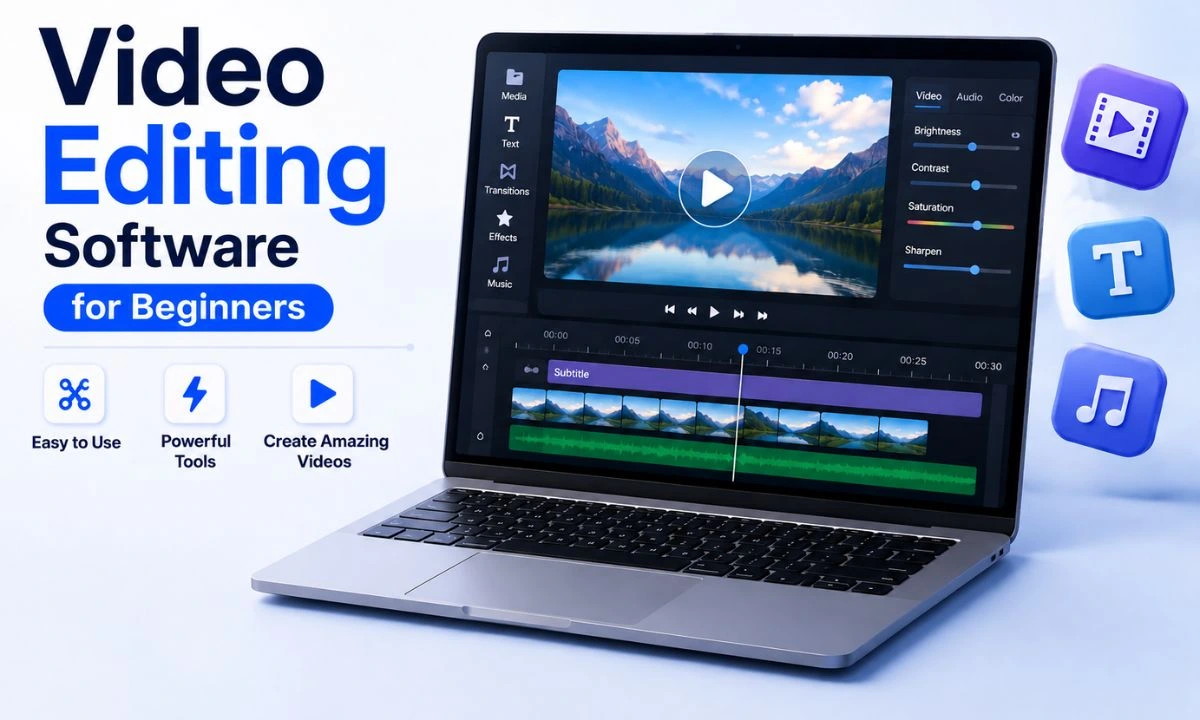
- A drag-and-drop timeline: Pull a clip onto a track. Trim the edge. See the result right away. No digging through menus for basic cuts.
- Sensible defaults: Text, transitions, and audio should look decent before you touch a single setting.
- Templates that don’t look like templates: Good starter tools give you intros and captions to build from. You’re editing, not designing from a blank page.
- A fast export: You shouldn’t need to learn what a bitrate is just to post a 30-second clip.
- Room to grow: The best beginner tools don’t box you in. You can go deeper into color and audio later without switching software.
If a tool fails more than one of these, it will slow your first few projects down more than it helps.
The Best Video Editing Software for Beginners, Compared
There’s no single best pick. The right one depends on your device, your budget, and what you’re making. Here’s an honest breakdown, not a sponsored list.
CapCut — best for short-form social video: CapCut is the go-to app for Reels, Shorts, and TikToks. Its auto-captions are surprisingly accurate. Auto-reframe crops horizontal footage into vertical formats for you. The template library makes trend-chasing easy. It’s free to start, with a paid tier for extra AI effects.
iMovie — best free option for Apple users: If you’re on a Mac or iPhone, iMovie is about as easy as it gets. It’s free, already installed, and works smoothly with the rest of your Apple devices. It also supports 4K HDR. It won’t satisfy you forever, but it removes almost every barrier to starting.
Clipchamp — best for Windows beginners: Clipchamp comes built into Windows and is genuinely simple to use. It’s a strong pick for quick business, school, or personal videos. You won’t need to install anything extra, and a basic video takes just minutes to cut.
Filmora — best middle ground: Filmora sits between the ultra-basic apps and full professional software. It has a clean timeline, a huge library of drag-and-drop elements, and solid AI features like background removal and text-to-speech. It’s a natural next step once CapCut or iMovie start to feel limited.
DaVinci Resolve — best free tool to grow into a real skillset: DaVinci Resolve is free, powerful, and used by working professionals. That means skills you build here carry over to paid editing work later. The interface is more complex than CapCut or iMovie. But tutorials are everywhere, and you won’t outgrow this tool anytime soon.
PowerDirector — best for speed on Windows: PowerDirector is a traditional, timeline-based editor with more depth than most beginner apps. It still stays approachable. Good choice if you want more control than Clipchamp offers, without jumping straight to professional software.
Premiere Elements — best for Adobe users who want it simple: Adobe’s simplified editor gives beginners a taste of the Premiere family. It has guided edits and a much gentler learning curve than Premiere Pro. Good fit if you eventually want to move into Adobe’s professional tools.
Free Video Editing Software Without a Watermark
One of the most common frustrations: you finish an edit, only to find the free version stamped a logo across the whole thing. If that’s a dealbreaker for you, start with these:
- DaVinci Resolve — completely free, no watermark, no time limit. It does ask more of your computer’s hardware, though.
- iMovie — free and watermark-free for Apple users, with no limit on export length.
- Clipchamp — the free Windows tier exports without a watermark, though some premium extras sit behind a paywall.
- CapCut — standard free exports are watermark-free. Certain premium effects and templates do require a subscription.
Export rules can change without much notice. It’s worth exporting a short test clip in any new tool before you commit a full project to it.
AI Photo-to-Video Tools Worth Knowing About
More and more beginners aren’t starting with filmed footage at all. They’re turning still images into short video clips using AI. This is the same idea behind searches like “ai gambar jadi video gratis” — turning a picture into a free AI video. CapCut, Canva, and several other tools can animate a photo with pans, zooms, or generated motion, often for free. This works well for slideshows, product showcases, or turning one graphic into scroll-stopping video without touching a camera. If this is your main use case, look for editors where AI image-to-video is a built-in feature, not a bolted-on extra. The built-in versions tend to work better.
Video Editing vs Raster Graphics Editing — Don’t Mix Them Up
This confuses a lot of newcomers. Video editing software works with moving footage on a timeline. Raster graphics editing software — tools like Photoshop or GIMP — works with still, pixel-based images. You’ll often use both together. You might build a thumbnail or title card in a raster graphics editor, then bring it into your video timeline. Don’t feel like you need to master both right away, though. Most beginner video editors already include basic image tools like text, overlays, and simple touch-ups. That’s often enough for simple projects.
Where Repurposed Social Footage Fits In
Plenty of beginner projects don’t start with footage you filmed yourself. They start with a clip found online — a trending post, a client’s promo video, or your own content shared on another platform. If you’re pulling clips from Twitter/X, a dedicated Twitter video downloader beats screen-recording. It saves the file at its original quality instead of a re-compressed, lower-resolution copy. That difference matters more than you’d think once the clip sits next to your own footage on the timeline. Creators who repost or reuse clips often keep a Twitter video tool bookmarked for exactly this reason. That way, gathering source material never becomes the thing that stalls a project before editing has even started.
How to Choose the Right Editor for You
Skip the trend-chasing. Answer three quick questions instead.
- What device you’re editing on: Phone-first creators should lean toward CapCut or InShot. Mac users get the smoothest ride from iMovie. Windows users on a budget should start with Clipchamp.
- What you’re actually making: Short-form social content favors CapCut’s templates and auto-captions. Longer YouTube-style content benefits from DaVinci Resolve’s depth or Filmora’s balance of ease and control.
- Growing into professional editing later: Start with software built on real industry concepts — tracks, keyframes, color grading — even if it takes longer to learn at first. DaVinci Resolve is the clearest long-term investment here.
A Realistic First Project Workflow
- Gather everything before you cut: Import all your clips first. Jumping between “find footage” and “edit footage” breaks your focus fast. If your source material is spread across a few platforms, pulling it all together first with a tool like SelfDownloader saves you from stopping mid-edit to go hunt down one more clip.
- Do a rough cut: Trim to roughly the length you want. Don’t worry about polish yet. This step alone removes most of the anxiety beginners feel.
- Add one thing at a time: Text, then music, then transitions — never all three at once. Layering everything together makes it hard to tell what’s actually helping the video.
- Export small, export often: A five-minute test export teaches you more about pacing than an hour of staring at the timeline.
Common Beginner Mistakes Worth Avoiding
- Skipping keyboard shortcuts. Learn five or six — cut, trim, undo, playback, export. This alone saves real time.
- Leaning too hard on effects. A clean cut with good pacing beats a video buried in transitions and filters almost every time.
- Ignoring audio. Viewers forgive shaky visuals far more than bad sound. Fix your audio levels before you touch color.
- Editing the full-length version first. Cut a 60-second version before you try a 5-minute one. Pacing instincts build faster on short content.
- Not saving as you go. Beginner software crashes more than people expect, usually from oversized source files. Save often.
FAQ
What is the easiest video editing software for complete beginners?
CapCut and iMovie are the easiest starting points for most people. Both use drag-and-drop timelines, come with ready-made templates, and don’t need any prior editing knowledge to finish a video within an hour.
Is free video editing software good enough for YouTube in 2026?
Yes. DaVinci Resolve, CapCut, and iMovie can all produce full HD or 4K, watermark-free videos that work well for YouTube. Many creators with large channels still edit entirely on free software.
Which free video editing software has no watermark on exports?
DaVinci Resolve and CapCut don’t watermark standard exports on their free tiers. Neither does iMovie for Apple users. Still, test-export a short clip in any new tool before you commit to a full project.
Do I need a separate photo editor alongside video editing software?
For detailed thumbnail or graphic work, yes. Video editors aren’t built for precise pixel-level editing. A light raster graphics tool alongside your video editor is a common, practical setup.
Do I need a powerful computer to start editing video?
Not really. Lightweight tools like Clipchamp and CapCut run fine on modest hardware. DaVinci Resolve likes a dedicated graphics card, but it still runs fine on most modern laptops for beginner projects.
Can I edit video entirely on my phone?
Yes, easily. CapCut, InShot, and LumaFusion are all capable mobile editors. For short-form content especially, many creators now film, edit, and publish everything from a phone.
How do I download a video from Twitter/X to use in my project?
The platform doesn’t offer a built-in download option. Most people use a dedicated Twitter video downloader tool to save the clip at full resolution before bringing it into their editor.
Final Thoughts
There’s no single correct first video editor. There’s only the one that fits your device, your content, and how much time you want to spend before seeing results. Want to publish within the hour? Start with CapCut or iMovie. Want to build skills that carry into professional work later? DaVinci Resolve is the better long-term bet, even if the first few sessions feel slower. Either way, the software matters less than finishing videos. Editing skill comes from repetition, not from finding the perfect tool before you start.