How to Download Issuu Documents as PDF: A Simple Step-by-Step Guide
You found a great magazine, catalog, or report on Issuu. You want to keep a copy on your phone or laptop, but Issuu does not always show a download button. Many publishers turn that option off. So how do you save the file anyway?
Selfdownloader built a free tool for exactly this problem, and this guide walks you through using it.
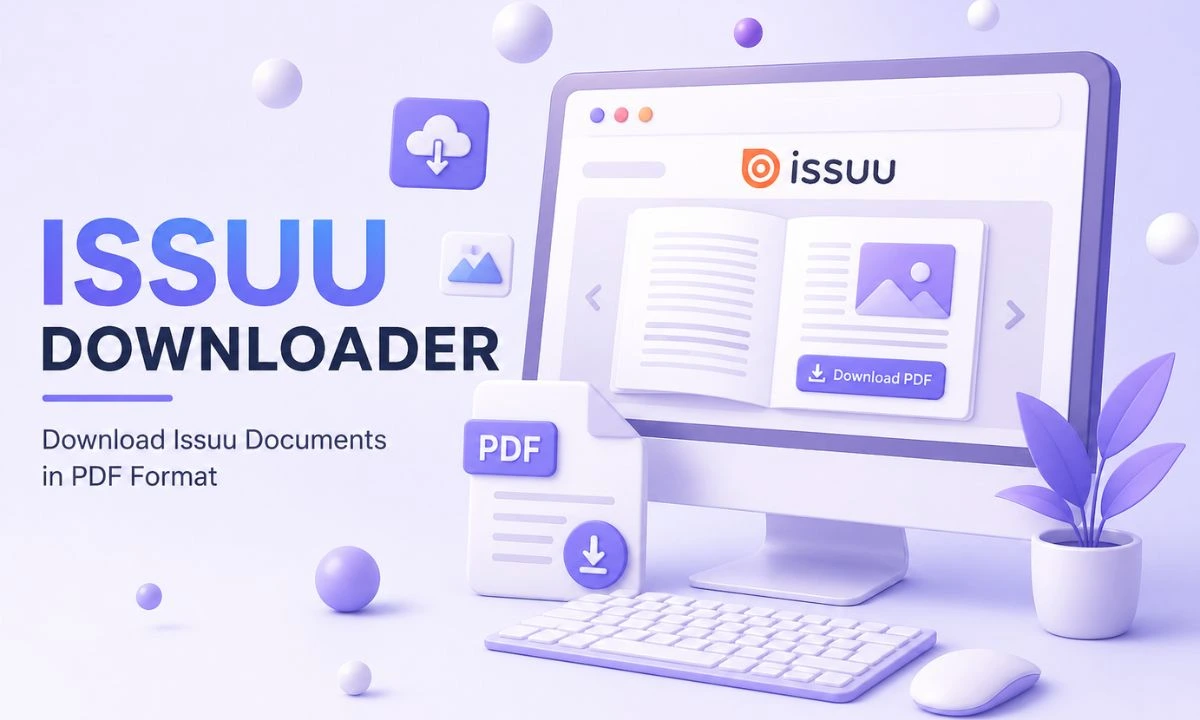
This guide shows you exactly how to use an Issuu downloader to turn any public Issuu link into a real PDF file. No software to install. No account to create. Just paste a link and download.
Why Issuu Does Not Always Let You Download
Issuu is built as an online reading platform, not a file-sharing site. Publishers choose whether readers can download their documents. If a publisher leaves that setting off, the only way to read the file is inside the Issuu viewer.
That is fine if you just want to browse. But it is frustrating if you need the file offline, want to print it, or need to share it with someone who does not have internet access at that moment. This is where an issuu PDF downloader becomes useful. It reads the public pages of the document and rebuilds them into a single PDF you can save anywhere.
What You Need Before You Start
Please provide the public link to the Issuu document. You can find this in your browser’s address bar while viewing the document, or you can copy the “Share” link from the Issuu page itself. The link usually looks like this:
https://issuu.com/publisher-name/docs/document-nameAs long as the page is public (not private or password-protected), the tool can read it.
Step 1: Choose Your Language
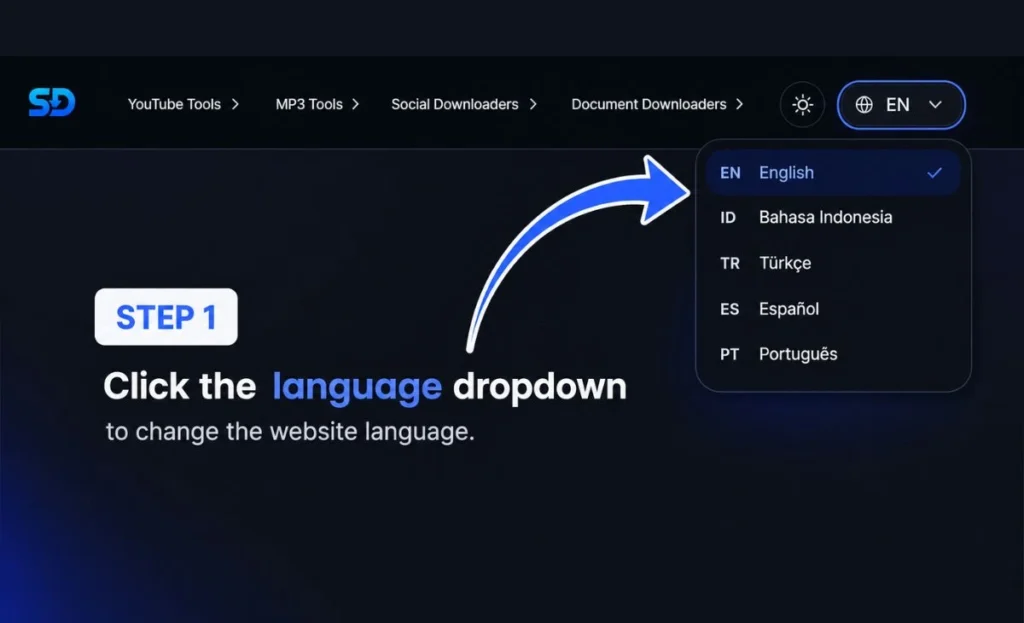
Open the Issuu Downloader tool on Selfdownloader. In the top right corner, you will see a language switcher. Click it and pick the language you are most comfortable with — English, Bahasa Indonesia, Türkçe, Español, or Português are all available. This changes the text on the page, not the document you are downloading, so pick whatever feels easiest to read.
Step 2: Open the Issuu Downloader
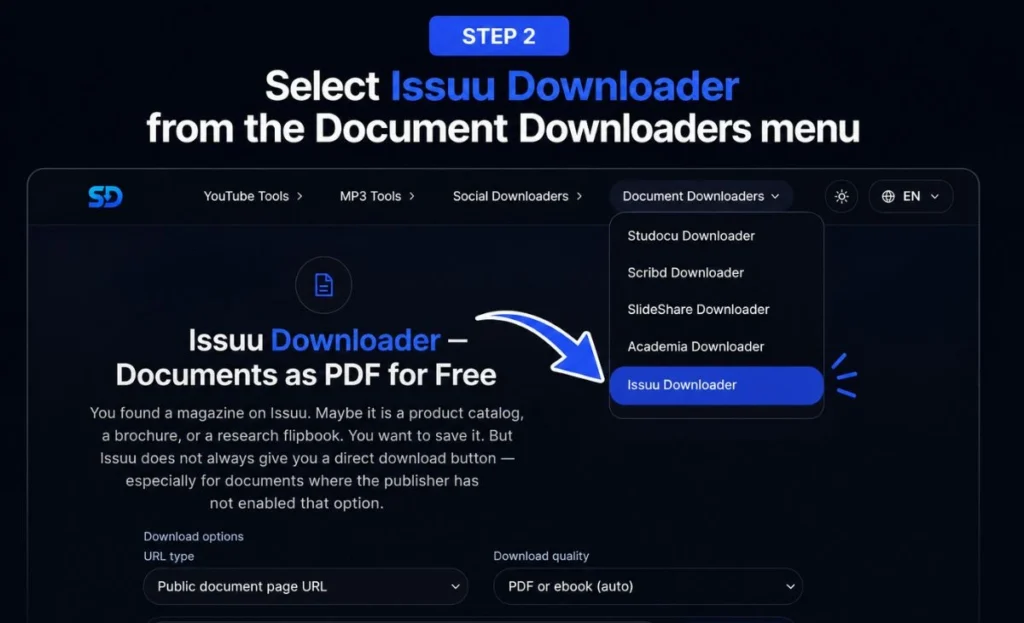
From the main menu, hover over Document Downloaders and select Issuu Downloader from the list. You will also see downloaders for Studocu, Scribd, SlideShare, and Academia in the same menu in case you ever need those too.
Once the page loads, you will see two small settings above the input box:
- URL type — leave this on “Public document page URL” unless you have a different kind of link.
- Download quality — “PDF or ebook (auto)” works for almost every document. The tool automatically selects the best available quality.
Step 3: Paste the Link and Download
Copy the Issuu document link, paste it into the box, and click Download.
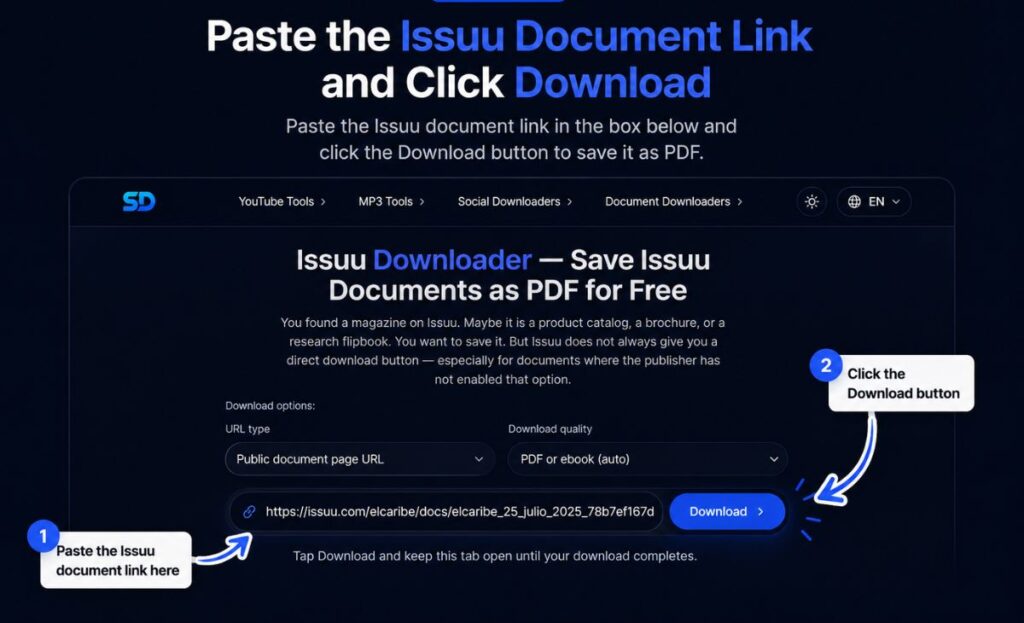
Here is the part people sometimes miss: do not close the tab. The tool needs to fetch every page of the document and stitch them into a PDF. This usually takes somewhere between 10 and 120 seconds, depending on how long the document is. Once it finishes, your browser will redirect you to a page where you can save the finished file. From there, downloading is a single click.
A Few Tips for a Smooth Download
- Double-check the link is public. If a document is private, no downloader — this one included — can access it. You will usually get an error right away if that is the case.
- Longer documents take longer. A 100-page catalog will naturally take more time to process than a 5-page flyer. This is normal.
- Keep your connection stable. Since the tool is fetching data in the background, an interrupted connection can cause the process to fail partway through. If that happens, just paste the link again and retry.
- It is completely free. You do not need to sign up, pay, or install a browser extension to use this issuu downloader.
Frequently Asked Questions
Is there a real way to convert Issuu to PDF for free?
Yes. The steps above cover the entire process, and there is no cost involved. You paste the link, wait for the tool to build the file, and download it as a standard PDF.
Can I download from Issuu on my phone?
Yes. The tool works in any mobile browser. The steps are the same — open the page, paste the link, and download once it is ready.
Why did my Issuu download fail?
The most common reasons are a private document, a broken or incomplete link, or a slow connection that timed out during processing. Copy the link directly from Issuu’s address bar to be safe, and try again if your connection drops.
Does this work for every Issuu publication?
It works for any publicly viewable document. If a publisher has restricted access entirely, no external tool can bypass that.
Ready to Save Your Document?
Downloading from Issuu does not need to be complicated. Pick your language, open the Issuu Downloader, paste your link, and let it do the work. In under two minutes, you will have your own PDF copy saved and ready to read anywhere.